
How to find your car when you forgot where you parked
Walked out of the shop and have no idea where you left the car? Your phone can usually tell you. Here is how to find your parked car on iPhone and Android, what to try if you forgot to save the spot, and how to make sure it never happens again.
Where is my car? The short answer
If you saved the spot in Find My Car, open the app: your car is on the map, with a walking route back to it and the distance.
Did not save it this time? Go through the places to look below. Next time, tap Park when you leave the car, or long-press the map to drop a pin, and the app remembers the spot for you.
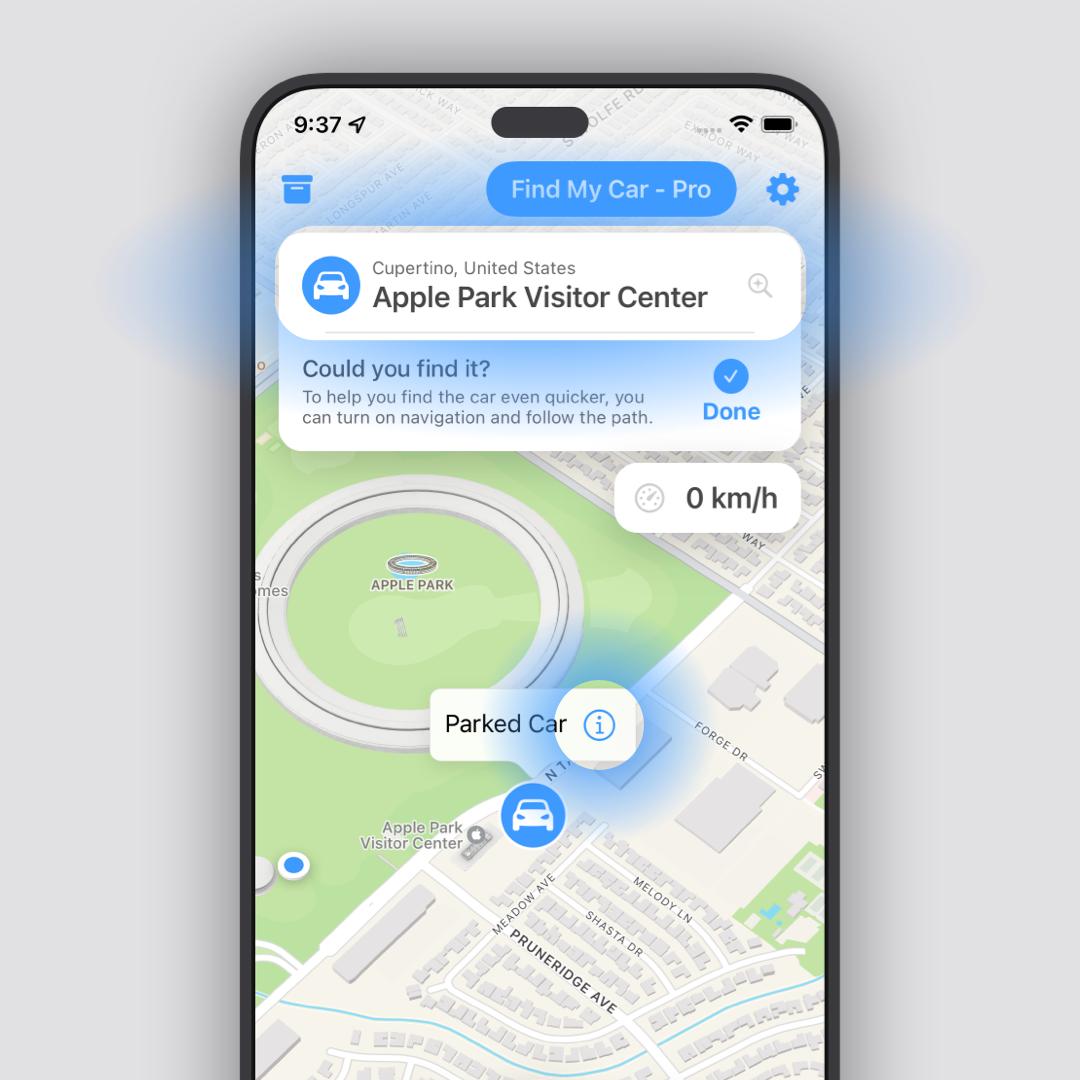
Forgot to save where you parked?
If you did not save the spot, there are still a few places to look:
- Google Maps Timeline: if Timeline is turned on, tap your profile picture in Google Maps and open Your Timeline to see where you stopped today.
- Apple Maps: open Maps and look for Parked Car anyway. If your iPhone was connected to the car, it may have marked the spot on its own.
- Your car maker's app: many newer cars show their location in the manufacturer's app if connected services are turned on.
- A tracker in the car: an AirTag or another Bluetooth tracker left in the car shows up in the Find My or tracker app.
- Your photos: a photo you took near the car, even of a sign or a shop, carries the location where it was taken.
Find your parked car on iPhone with Apple Maps
Apple Maps can mark where you parked automatically when your iPhone disconnects from your car's CarPlay or Bluetooth. Check that these settings are on:
- Open Settings, tap Privacy & Security, then Location Services, and turn Location Services on.
- In Location Services, tap System Services and turn on Significant Locations.
- Go back to Settings, tap Apps, then Maps, and turn on Show Parked Location.
- To find the car, open Maps, tap Parked Car in the suggestions under the search field, then tap Directions.
Apple Maps only marks the spot when your car connects to the iPhone over Bluetooth or CarPlay, and it does not mark it at familiar places like home or work. Menu names can differ slightly between iOS versions.
On iPhone without CarPlay or Bluetooth? See how Find My Car saves your spot →
Find your parked car with Google Maps on Android or iPhone
Google Maps lets you save your parking spot yourself, and on iPhone it can also detect it when your phone is connected to the car.
- When you have parked, open Google Maps and tap the blue dot that shows your location.
- Tap Save parking. To remember the floor or the meter time, open the parking location and add a note or a photo.
- To get back, tap the “You parked here” pin, or search for “Saved parking”, and tap Directions.
On Android the spot stays saved until you clear it. On iPhone it is removed after 48 hours or when you start driving again.
Using Android? See how to save your spot with Find My Car →
The easy way: save your spot with Find My Car
The built-in options depend on Bluetooth, CarPlay or remembering a few taps. Find My Car saves where you parked in the app (on iPhone also by asking Siri, or by itself when your drive ends) and guides you straight back to the car. Write a note for the floor or row and get a reminder before your parking time runs out; with Pro you can add a photo too. It is free on iPhone and Android.
Want to see it first? Explore a live map of a parking history →
Tips so you never lose your car again
- Save the spot the moment you turn the engine off, before you walk away.
- In car parks, take a photo of the floor number or the nearest pillar.
- Note which exit or entrance you used to leave the car park.
- On iPhone, share your parking spot with whoever you are meeting, so they can find the car too.