- support@grumsendev.com
- Esbjerg, Denmark
Bådebrogade 1
Developed with 💙
© Copyright 2024 | by Grumsen Development Aps
Developed with 💙
by Grumsen Development Aps
© Copyright 2024
Go to findmycar.app and look for the “Download on the App Store” buttons. Alternatively, search for “Find My Car - Vehicle Tracker” on the App Store.
Go to findmycar.app and look for the “Get it on Google Play” buttons. Alternatively, search for “Find My Car - Vehicle Tracker” on Google Play.
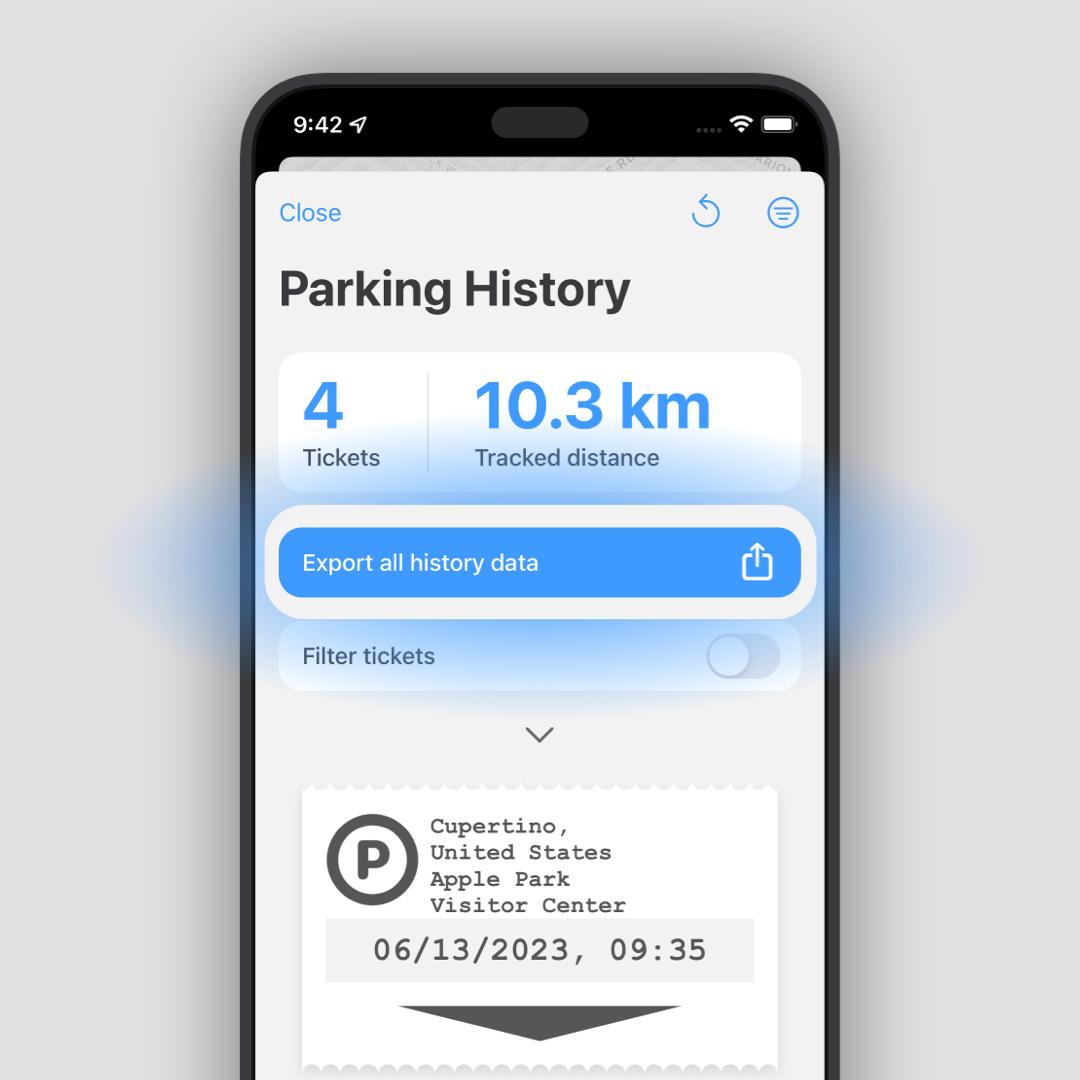
The History view is where all your saved parking tickets are collected. Here you can get an overview of your previous parkings and trips.
You can filter your tickets by date of parking and the starting point of your journey. The filtered tickets are shown below and the counter and distance is updated accordingly in the top section.
By tapping on the highlighted button on top a dialog window will show up, where you can select how you want to export your data. We recommend you save it to Files, so the spreadsheet will be saved on your device.
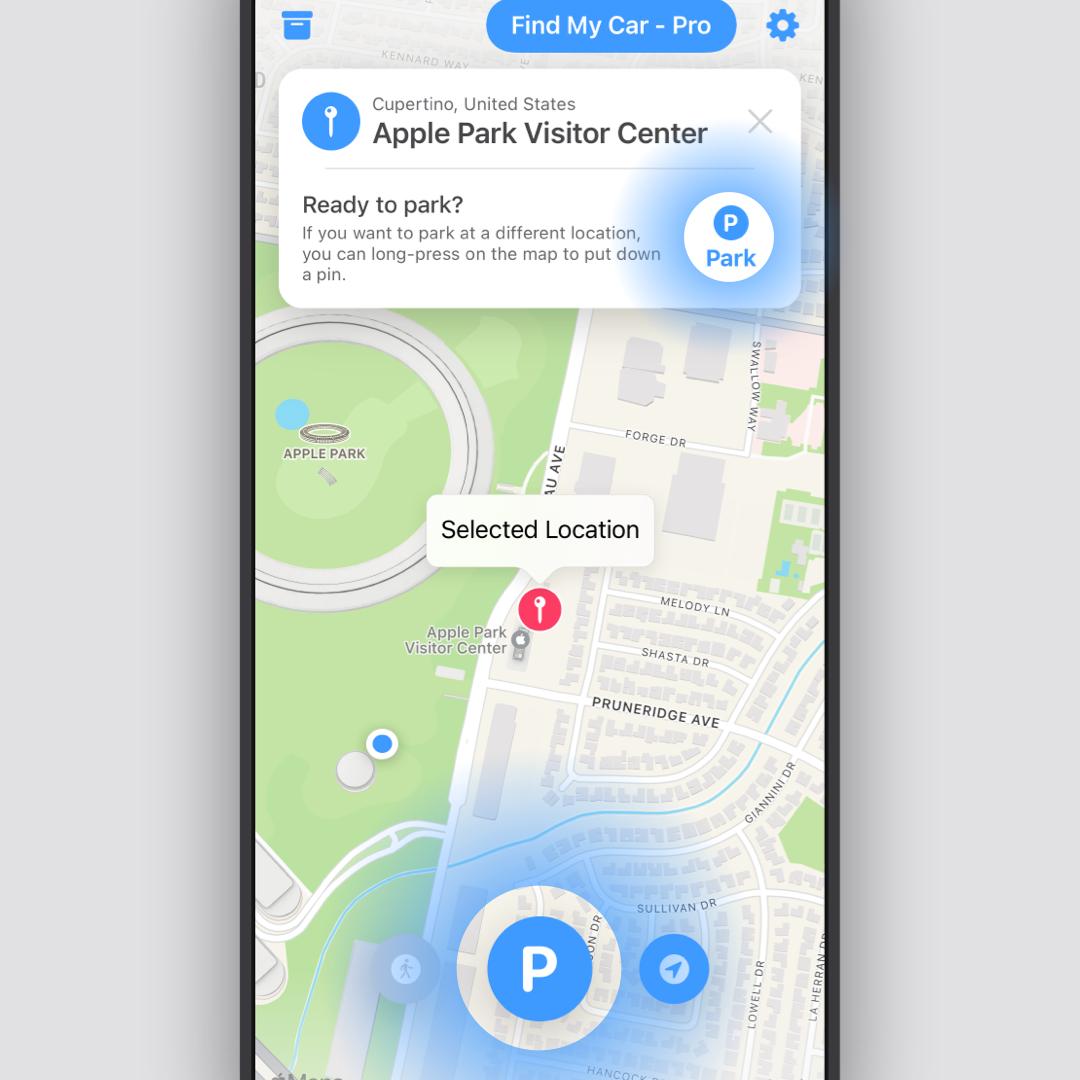
Once you have the app running, you should be able to see your current location on the map. If your car is not right next to you: on iPhone, move the pin on the Park screen; on Android, hold your finger on the map to pick another spot.
If you're happy with the selected location, continue with tapping the button with the Park sign in the bottom control section or the other Park button in the dashboard.
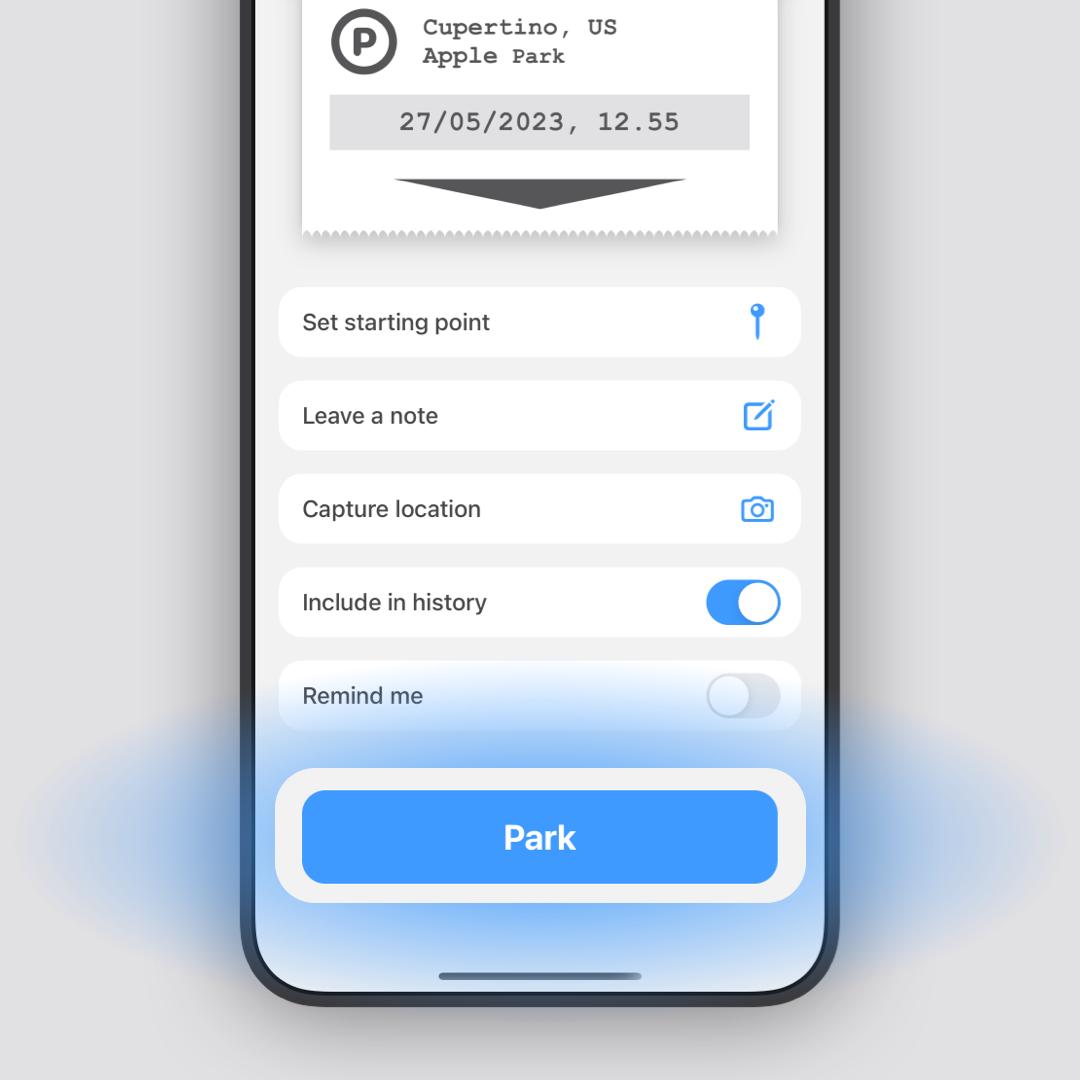
In the next view you'll see more options about your new parking: you can write notes, select the starting location of your trip and set reminders.
Finally, tap Park in the bottom to start the parking. You'll be taken back to the map view, where you'll be able to see your parked car!
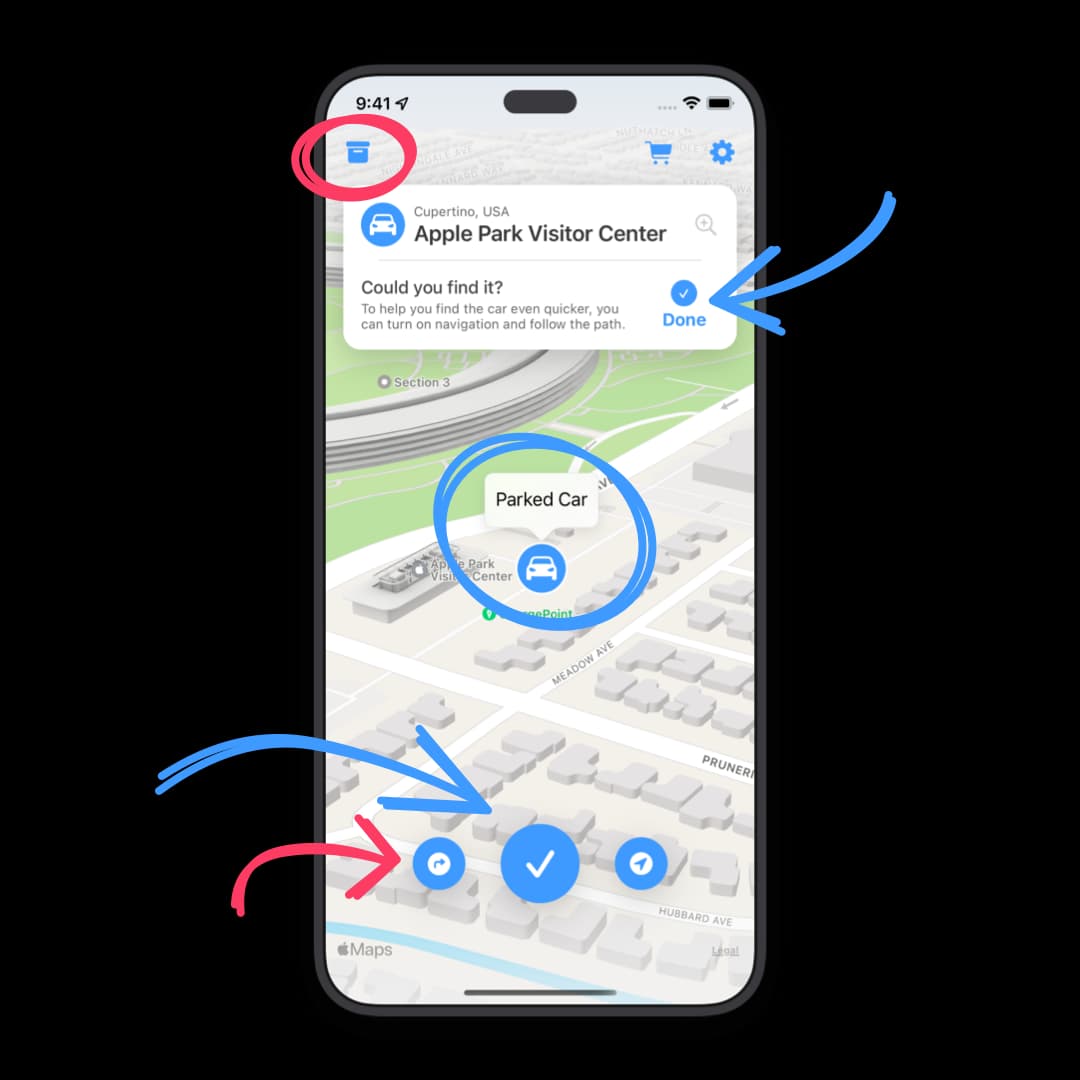
Open the app and make sure you're looking at the map view and that you have your car parked. In the top dashboard, you can read the address of the car's location, by tapping on the address, the map will focus on the location of your car.
Tap on the marked location of your car, then tap again on the information icon in the popup. Alternatively, you can go to the History view and see your active parking there, on the top parking ticket.
In the selected parking view you get an overview of your parking with everything that was saved: the time and duration of the parking, your photo if you added one (Pro), the exact coordinates and more.
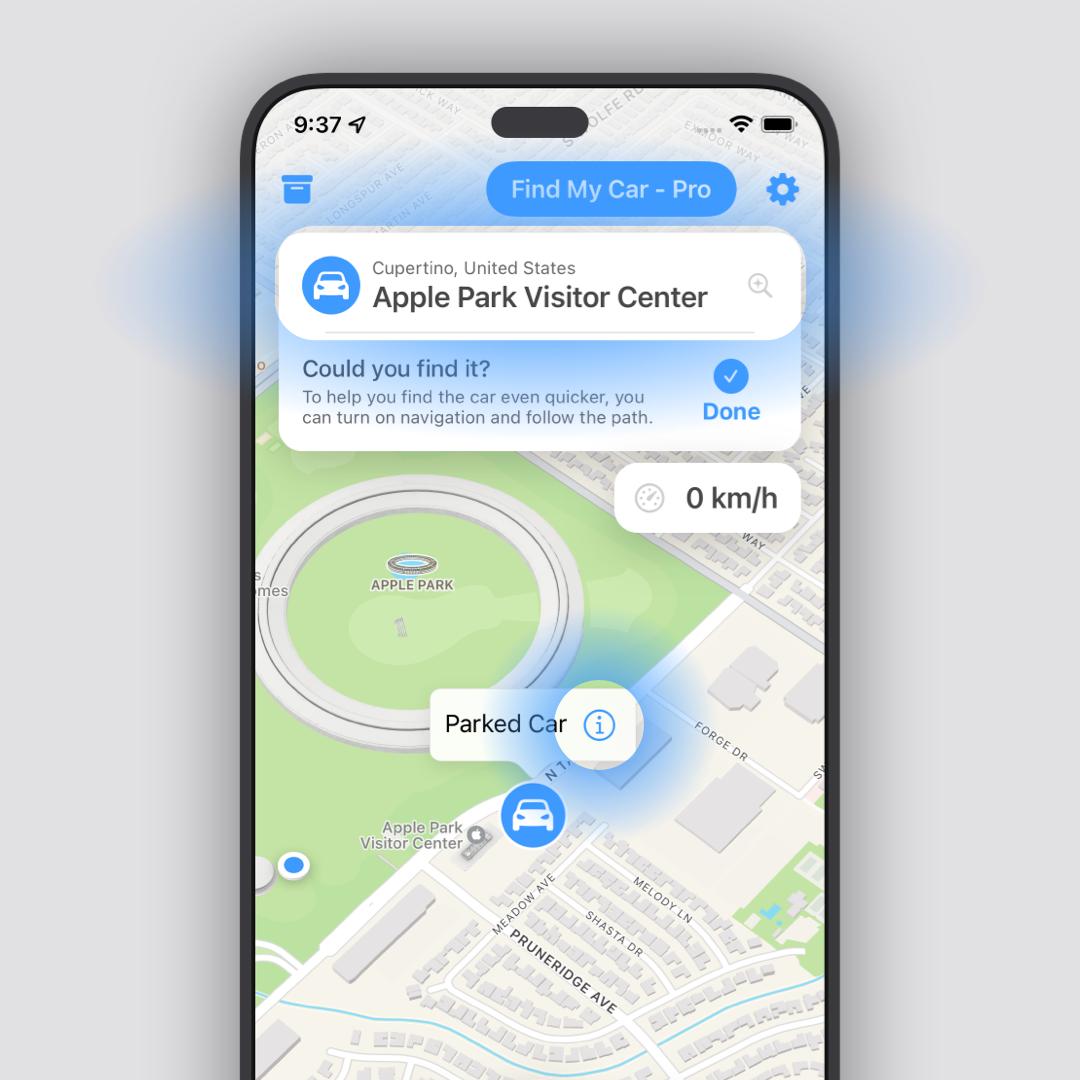
When your car is parked, tap on the car icon that appears on the map, then tap on the information icon in the popup. If you can't find your active parking information, check out “How can I locate my car?”.
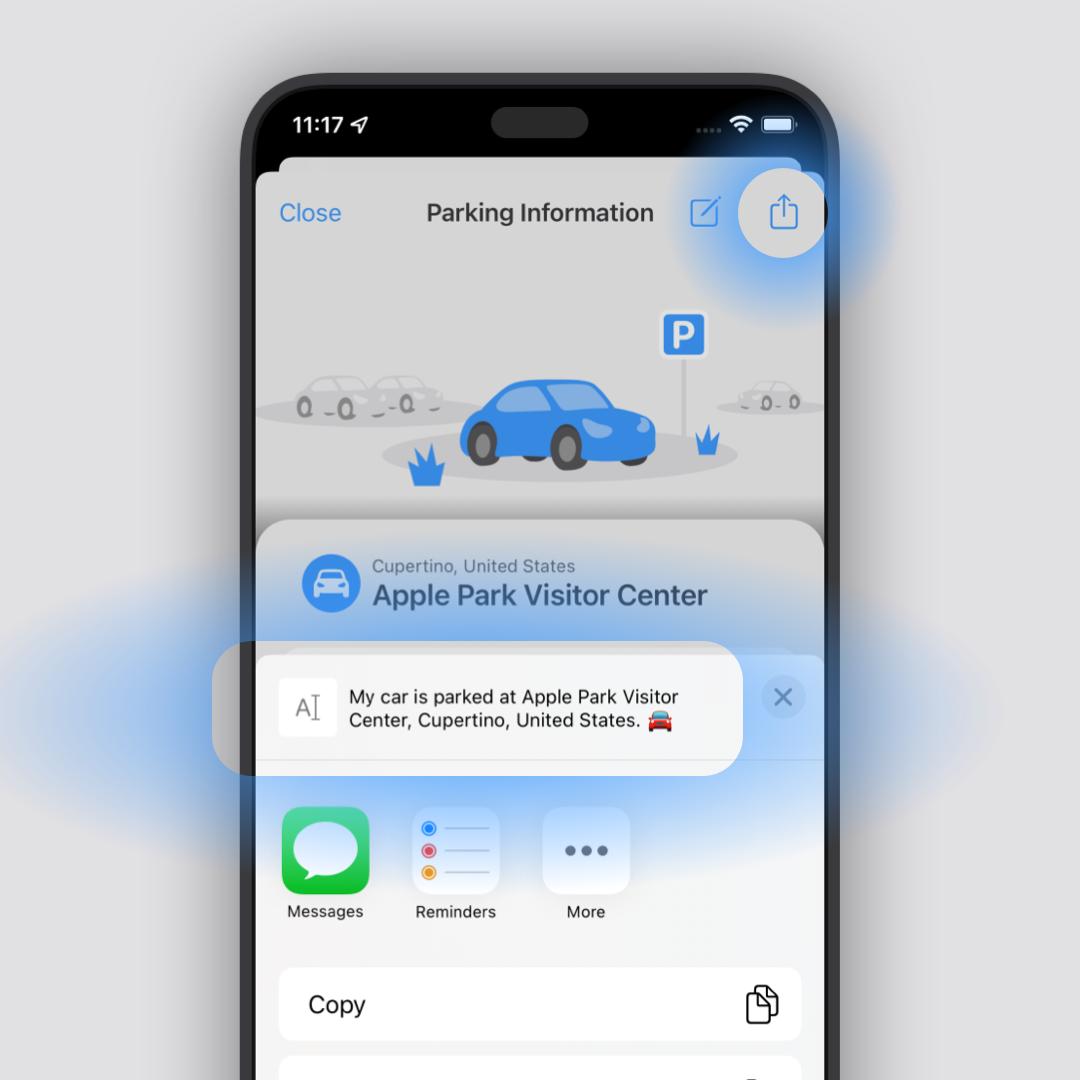
Find the Share icon in the navigation bar and pick one of the sharing options in the popup. The location of your car is included in a pre-written message.
No. Find My Car remembers where you parked: it saves the spot from your phone when you park. There is no GPS device in the car, so the app cannot see where the car is if someone moves it. If your car has been stolen, report it to the police straight away and tell your insurer. If your car has connected services, your car maker's app may show its location, and so may a GPS or Bluetooth tracker you had already hidden in the car. Give that location to the police rather than going after the car yourself.